-
SEO Learning Center
Broaden your SEO knowledge with resources for all skill levels.
-
The Beginner's Guide to SEO
If you're brand new to SEO, start here.
-
SEO Q&A
Get answers from the Moz Community.
-
Free Downloads and More
Quick access to whitepapers, reports, guides, webinars, and case studies.
-
Help Hub
Learn how to use Moz products.
-
Community & Events
Connect with over 600k online marketers.
-
SEO Training
Instructor-led classes and seminars
Getting Started with the Moz MCP Server
The Moz Model Context Protocol (MCP) server lets LLM hosts (such as Claude Desktop, ChatGPT Desktop, and coding agents like Claude Code) call the Moz APIs directly tools. Instead of writing code against our API, you connect the MCP server to your AI client and ask questions in natural language; the client calls the appropriate Moz tools on your behalf.
Beta!
The Moz MCP server is currently in beta.
Access is limited to account owners today. We are actively working to expand access to seated users.
Endpoints
The MCP server exposes two endpoints, split by product. You can connect one or both, depending on the products you subscribe to. Each requires a valid subscription to the corresponding product.
The suggested name is the label to enter when adding the server in a client like Claude Desktop or ChatGPT Desktop.
Moz Data
The Data endpoint exposes Moz Data API tools for SEO data: site metrics, links, keywords, rankings, and more.
- Suggested name: moz-mcp-v1-data
- MCP URL: https://api.moz.com/mcp/v1/data
- Requires: a Moz Data API subscription
Moz Local
The Local endpoint exposes Moz Local tools for managing and reporting on business locations and listings.
- Suggested name: moz-mcp-v1-local
- MCP URL: https://api.moz.com/mcp/v1/local
- Requires: a Moz Local subscription
Authentication
There are two ways to authenticate the MCP server.
OAuth (recommended)
Both endpoints support authentication through OAuth directly inside your client. When you add the server in a client like Claude Desktop or ChatGPT Desktop, the client will walk you through the OAuth sign-in flow. This is the recommended path for most users.
Manual connection with a Bearer token
If you prefer to connect manually with a token or your client does not support OAuth, you can authenticate with an HTTP header:
Authorization: Bearer <YOUR_MOZ_TOKEN>
The token value is your Moz API key, which you can find in the Moz API dashboard at moz.com/api/dashboard. The same token works against both the Data and Local endpoints.
Connecting a client
Claude Desktop
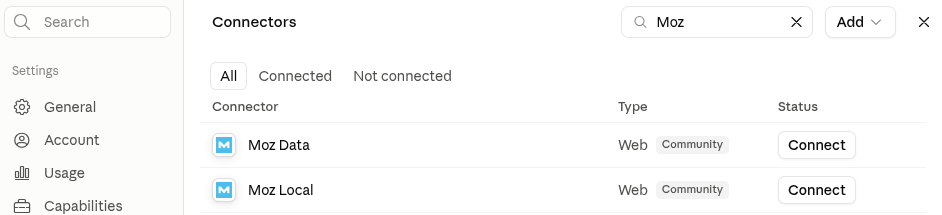
The easiest way to connect is straight from Claude's built-in connector directory. Moz Data and Moz Local are both published there.
- Open Settings → Connectors in Claude Desktop.
- Search for Moz.
- Click Connect next to Moz Data or Moz Local and complete the OAuth sign-in flow.
Other clients (ChatGPT Desktop, etc.)
If your client does not list Moz in a connector directory, add a new MCP (or "connector") server manually in its settings and enter:
- Name: the suggested name from above:
- moz-mcp-v1-data
- moz-mcp-v1-local
- URL: the matching MCP URL from above:
- https://api.moz.com/mcp/v1/data
- https://api.moz.com/mcp/v1/local
Claude Code
In Claude Code you can connect either endpoint using OAuth or with a manually supplied token.
OAuth
Add the server without an auth header, then run /mcp inside Claude Code to complete the OAuth sign-in flow when prompted:
claude mcp add moz-mcp-v1-data https://api.moz.com/mcp/v1/data \
  --transport http \
  --scope user
Manually supplied token
Supply your Moz API key as a Bearer token header:
claude mcp add moz-mcp-v1-data https://api.moz.com/mcp/v1/data \
  --transport http \
  --header "Authorization: Bearer $YOUR_MOZ_TOKEN" \
  --scope user
Set YOUR_MOZ_TOKEN in your environment to the API key from moz.com/api/dashboard before running the command.
To add the Local endpoint instead, swap the name and URL. Use moz-mcp-v1-local and https://api.moz.com/mcp/v1/local in either command above.